
Usage
Create an itsme transaction with provider: itsme and method: auth to authenticate, or method: sign to sign.
Authentication
Authentication is a redirect flow over OpenID Connect. By default eID Hub asks itsme for the user's profile and phone number; you can request a wider set of claims instead, for example email, Belgian address, citizenship, place of birth, Belgian national registry data, device information, a photo, or Dutch BSN and ID document data. Whatever you ask for is what comes back on completion, alongside a stable user identifier. See the API reference for the full list of requestable claims.
You can set the interface language to French, Dutch, English or German. If you don't set one, itsme matches the user's browser language and falls back to English if there's no match.
There's also an option to force PIN entry even if the user has fingerprint unlock enabled on their phone, for cases where you want the stronger confirmation step.
Belgian and Dutch identity data
What comes back beyond the basic profile depends on where the user is registered. Belgian users can return street address, locality, postal code, place of birth, national number, document number and document validity dates. Dutch users can return their BSN and ID document type and number. Both are returned as part of the same completion data, under their own country-specific section, so you don't need separate logic per claim unless you've asked for it.
Signing (QES)
itsme signing runs over itsme's own qualified signature flow, in two steps rather than one redirect:
- Identification — the user is redirected to itsme to identify themselves and consent to signing. eID Hub gets back their certificate chain.
- Signing — eID Hub calls your digest callback with the document's id and the certificate chain; your endpoint returns the digest to sign. The user is then redirected to itsme to approve the signature.
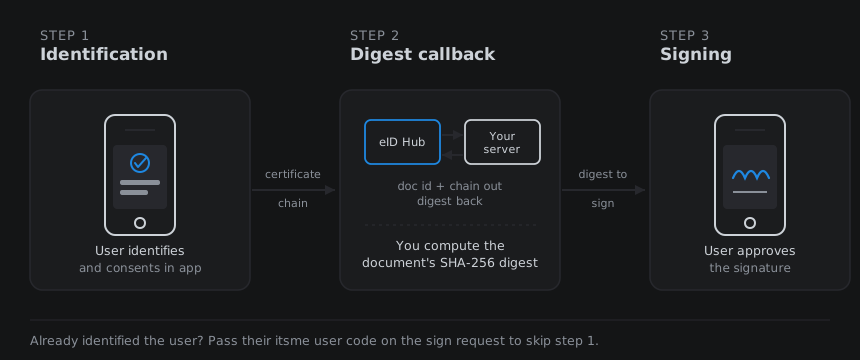
If the user has already been identified, for example they just authenticated, pass their itsme user code on the sign request to skip the identification screen and go straight to signing. You can also set the interface language (English, French, Dutch or German).
On completion you get a signature status (pending, success, or a requester/responder error), the signature itself, and the full certificate chain. See the API reference for the full signing parameters.